
How Field Service Teams Track Work Without an Office
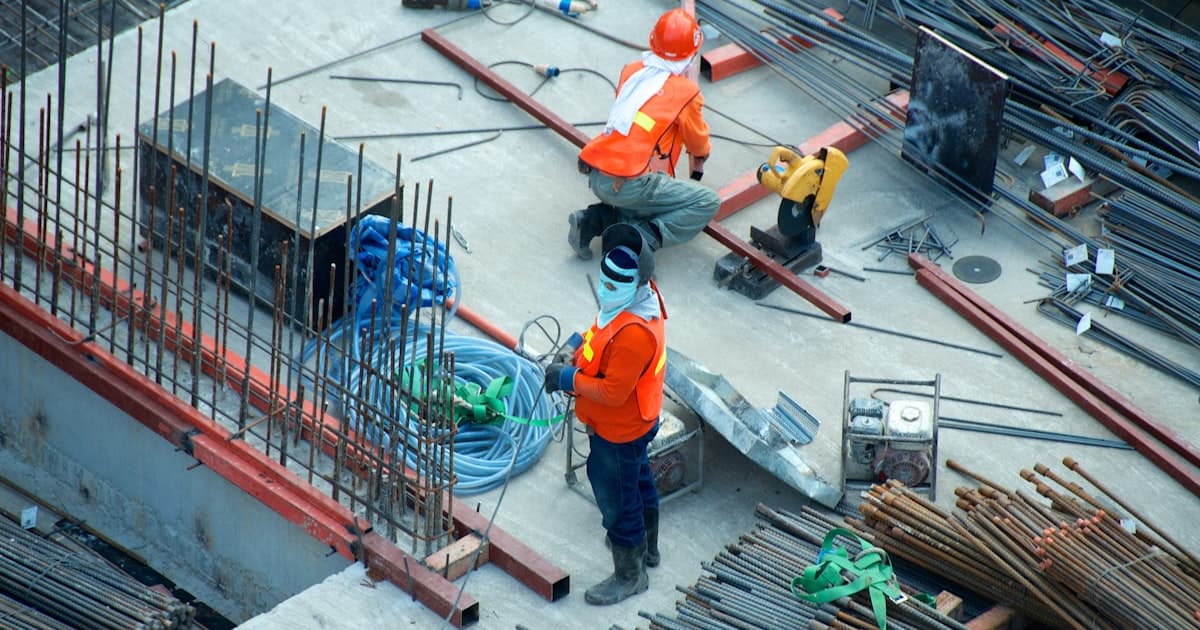
Your team doesn't work at a desk. They're on site — at a client's property, on the road, in the field. They get assignments over WhatsApp, update status in a group chat, and take photos on their phone that get sent and immediately lost in a thread.
The manager back at the office has no clean view of what's happening. To get a status update, they have to ask. To know if a job is done, they have to call. Every follow-up is manual.
This is how most field service businesses operate. It works — until it doesn't. Until a task gets missed because it was buried in chat. Until a client calls asking about a job the manager thought was completed two days ago. Until the team is big enough that the manager can't keep track of ten threads at once.
The fix isn't a complex project management platform. It's a task system that works the way field teams actually work — from a phone, on site, without training.
Why Desktop-First Tools Fail Field Workers
Most task management software is designed around a desktop experience. The web app is the primary product. The mobile app is a companion — functional, but clearly secondary.
This creates a real problem for field teams:
Nobody opens a laptop on a job site. If the tool requires a computer to function properly, field workers won't use it. They'll go back to WhatsApp.
Field work is status-update-heavy. "I've arrived." "Job started." "Done, here's a photo." These updates need to happen in seconds, from a phone, without navigating complex menus.
Photo documentation is critical. Before/after photos, completion proof, damage documentation — this is part of the job. If sending photos requires more than two taps, workers skip it.
Offline matters. Job sites aren't always in connectivity-friendly areas. A task app that requires internet to function leaves workers stranded.
The tools that work for field teams are mobile-first — not mobile-friendly. There's a difference. Mobile-first means the phone is the primary device. Every feature is designed to work from a 6-inch screen, with one hand, in 30 seconds.
What a Day Looks Like With a Proper System
Here's the difference a mobile-first task system makes in practice.
Without a system:
- Manager sends job assignments in a WhatsApp group
- Workers acknowledge with "ok" or a thumbs up
- Manager has no idea when work starts or finishes
- Worker completes job, sends photo in the chat — buried within an hour
- Client calls asking for update — manager has to scroll through chat to find the photo
- End of day: manager doesn't know what got done and what didn't
With a mobile task system:
- Manager assigns task from the office app: worker name, job address, deadline, notes
- Worker gets a push notification — opens the task, sees all details
- Worker updates status to "In Progress" when they arrive — takes 2 taps
- Worker uploads completion photo directly inside the task
- Status changes to "Done" — manager sees it immediately, no follow-up needed
- End of day: every task has a status, every completion has a timestamp and photo
The information is the same. The system makes it visible without anyone having to ask.

What to Look for in a Field Team Task App
Not every task app is built for field use. Here's what actually matters for field teams:
Native mobile apps (not mobile web). Native apps are faster, work better with phone hardware (camera, GPS, push notifications), and can handle offline scenarios that browser-based tools can't.
Push notifications for new assignments. Workers can't be expected to check an app periodically. New tasks should push to their phone the moment they're assigned — the way a WhatsApp message does.
Photo upload inside tasks. Completion photos should attach directly to the task, not get sent in a separate message. This keeps documentation attached to the record.
Simple status updates. "Not started / In progress / Done" — three taps. Field workers don't want to fill forms. The simpler the status update, the more likely it happens.
Offline functionality. Workers should be able to view their assigned tasks and update status even without a live connection. Changes sync when connectivity returns.
Manager visibility from anywhere. The manager should be able to see all active tasks, overdue work, and completions from their own phone — not just from a desktop dashboard.
How TasqMan Works for Field Teams
TasqMan is built for exactly this use case. The iOS and Android apps are first-class products — not companion apps. Everything a field worker needs is on mobile.
For the field worker:
- New task assignments arrive as push notifications
- Each task shows the owner, due time, priority, and any notes from the manager
- Status updates take two taps
- Photos attach directly to the task
- Comment thread inside each task for any back-and-forth
For the manager:
- Assign tasks from web or mobile
- See live status across all active tasks
- Today view shows what's overdue, due now, and upcoming
- Pulse view shows completion trends across the team
- No need to chase updates — status is always visible
The pricing is per team, not per seat — which matters for field teams that fluctuate in size. Adding a seasonal worker or a contractor doesn't add a per-seat cost to manage.
Making the Transition From Chat
The biggest obstacle to switching isn't the tool — it's the habit. WhatsApp is comfortable. The team knows it. Changing requires a clear decision and consistent follow-through.
What works:
Start with one team or one project type. Pick the highest-friction area — the job type where most status confusion happens — and run it exclusively through the new system for 30 days.
The manager assigns everything through the tool from day one. If assignments still come through WhatsApp, workers have no reason to open the task app. All assignments go through the system, full stop.
Keep it simple for workers. Don't try to introduce every feature at once. For the first month: open the app, see your tasks, update status, upload photos. That's it.
Acknowledge completions visibly. When a worker marks a task done, the manager should respond through the system — a comment, a "good work." This reinforces that the tool is the real channel, not chat.
Frequently Asked Questions
Does TasqMan work offline?
Yes. Field workers can view their assigned tasks and update status without a live connection. Changes sync automatically when connectivity is restored.
Can workers see only their own tasks?
Yes. Members see their assigned tasks. Managers and owners can see tasks across the team.
Can we attach GPS location to completed tasks?
Photo uploads include metadata. Location-stamped tasks are on the roadmap.
How many photos can we attach per task?
Multiple photos can be attached to a single task. File size limits apply per upload.
What if a field worker doesn't have a smartphone?
TasqMan requires a smartphone with iOS or Android. For teams where some workers don't have smartphones, managers can update task status on their behalf from the web or mobile app.
Does it work for teams across multiple job sites simultaneously?
Yes. Each task is assigned to one worker. The manager sees all active tasks across all sites from a single view, filtered by project, worker, or status.
See also: Why Your Team Keeps Losing Tasks in Chat.
Running a field team? Try TasqMan Task Management free for 7 days — assign from the office, track from anywhere, no spreadsheets or WhatsApp threads needed. No credit card required.
Ready to fix this?
Try TasqMan free for 7 days
Team-based plans. No credit card required to start.
Get started free